| 1. |
Yikes!
There is NO fraction key!! |
| |
Don't panic! Just remember that the
fraction bar means "divide". |
| |
Enter |
 |
as " 3
 5
".
The calculator will display .6 5
".
The calculator will display .6 |
| 2. |
Mixed numbers may be entered directly. |
| |
| Enter a mixed number as it is read
--- " three
AND (+) one half " |

|
Enter
3 + 1 / 2 |
|
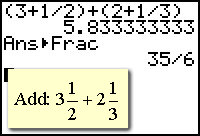
If you need to convert
your decimal answer to a fraction, choose the MATH key and
#1 Frac.
Remember that not ALL decimal numbers can be converted to fractions.
(Of course, the mixed number can also be entered as an improper fraction.) |
| |
 |
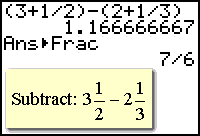 |
In the examples on the left, the use of parentheses was not needed when adding,
but WAS needed when subtracting (where without them, only the 2 would
have been subtracted giving the wrong answer). |
| 4. |
Working
with scientific notation. |
| |
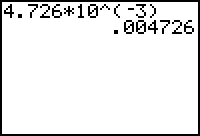
In Normal Mode:
Expressed in decimal notation, 4.726 x 10⁻³ is
(1) 0.004726 (2) 0.04726
(3) 472.6 (4) 4,726
|
 |
| |
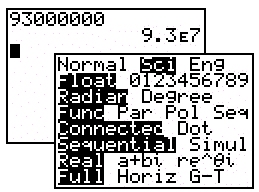
In Scientific Mode:
The distance from Earth to the Sun is approximately 93
million miles. A scientist
would write that
number as
(1) 9.3 x 10⁶
(2) 9.3 x 10⁷
(3) 93 x 107 (4) 93 x 1010 |
 |
| |
Hint: In normal mode, if the
answer cannot be displayed in 10 digits or the absolute value is less
than .001, the answer will appear in scientific notation. |
|


 is equivalent to
 (2)
(2)

 (4)
(4)

 is true,
 (2) 0
(2) 0 (4) 4
(4) 4